
This post contains affiliate links.
When you buy something using these retail links, we may get a commission.
How to Build a WordPress Website for $2.50/mo (Step-by-Step Guide)
Have you ever wanted to start a blog, launch a small business website, or create your own corner of the internet but felt that hosting costs would make it too expensive?
The good news is that you don’t need a large budget to get started. WordPress is free, many of its themes and plugins cost nothing, and affordable shared hosting can give you everything you need to launch a simple website.
In this guide, I’ll show you how to build a WordPress website step by step, using InterServer as the hosting provider. It’s a practical option for beginners who want to get a website online without paying for an expensive hosting package before they’ve even published their first page.
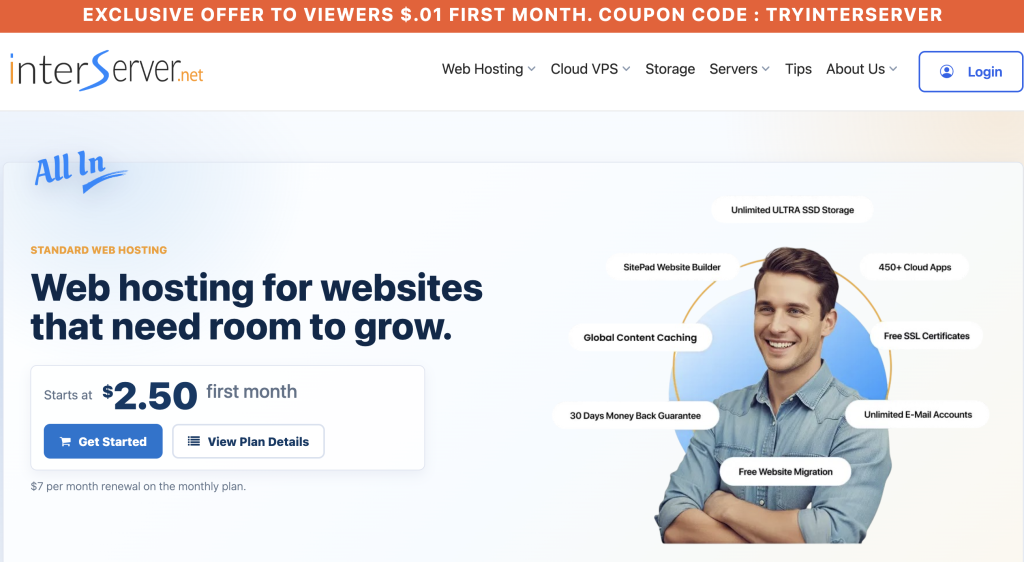
One important pricing note: InterServer currently advertises its standard web hosting at $2.50 for the first month, with the monthly plan renewing at $7 per month. So, the $2.50 price is an introductory offer, not the ongoing monthly cost. Always check the current price and billing terms before ordering.
You can start here: Explore InterServer web hosting.
Let’s get your website up and running.
What You’ll Need to Build a WordPress Website
Before we begin, let’s keep things simple. You don’t need coding skills, a web development degree, or a collection of expensive software.
You’ll need just a few things:
- A domain name: Your website’s address, such as
mygreatblog.com. - Web hosting: The service that stores your website’s files and makes them accessible online.
- WordPress: Free website software that lets you publish posts, create pages, and customize your site.
- A little time: You can complete the basic setup in an afternoon, although designing your site and preparing good content will take longer.
Your domain name and hosting are two different things. Think of the domain as your address and hosting as the space where your website lives.
You can register a domain through a domain registrar or a hosting provider that offers domain registration. Check whether a domain is included in your chosen plan, whether it is free only for the first year, and what the renewal price will be.
WordPress itself is free to download and use. You don’t need to purchase a premium WordPress theme or page builder to create a professional-looking beginner website.
Step 1: Choose InterServer Hosting
The first step is choosing where your website will live.
For a new blog, portfolio, personal website, or small business site, shared hosting is often a reasonable place to start. Your website shares server resources with other customers, which helps keep the price lower than renting an entire server.
InterServer offers standard web hosting with support for WordPress and other content management systems. Its current entry-level monthly offer starts at $2.50 for the first month and renews at $7 per month on the monthly plan.
That makes it possible to test the service without immediately committing to a long billing period.
Why consider InterServer?
For a beginner, the useful thing about choosing a conventional hosting plan is that you can manage your website without needing to learn server administration.
InterServer’s standard hosting includes features such as:
- Support for WordPress and other website applications.
- A hosting control panel for managing your website.
- SSL support for secure HTTPS connections.
- Email and database tools.
- Weekly backups and other hosting features listed in the current plan.
The exact features and terms can change, so review the plan details before purchasing.
You also don’t need to buy a more expensive hosting package simply because you’re starting a blog. A basic site with a few pages and regular articles generally has different needs from a busy online store with thousands of products.
Ready to get started? Visit InterServer’s official web hosting page and review the current plan, renewal price, and billing options.
Tip: If you are using an affiliate link, replace the standard InterServer link above with your tracked affiliate URL before publishing.
Step 2: Register a Domain Name
Your domain name is one of the first things visitors will notice about your website, so it’s worth spending a little time choosing it.
Ideally, your domain should be easy to spell, easy to remember, and relevant to your website’s subject. If you’re creating a personal blog, your name or a distinctive brand name might work well. If you’re building a business website, choose something that makes sense for your business.
Before purchasing, check the following:
- Is the name easy to pronounce and type?
- Is it short enough to remember?
- Does it avoid confusing spellings or unnecessary hyphens?
- Is the corresponding name available on relevant social media platforms, if you plan to use them?
A .com domain is a familiar choice for many international websites, but it’s not the only option.
Once you’ve selected a name, check whether you can register it through InterServer or whether you’d prefer to use a separate registrar. If your domain is registered elsewhere, you’ll need to connect it to your hosting account by updating the relevant DNS or nameserver settings.
Don’t rush this step, but don’t get stuck trying to find a theoretically perfect name, either. A clear, memorable name is usually more useful than an elaborate one.
Step 3: Connect Your Domain to Your Hosting
If you register your domain and hosting together, some of the connection work may be handled automatically.
If you purchase them separately, you’ll need to point your domain to the hosting account.
Your hosting provider should supply the nameservers or DNS records you need. Follow the instructions provided by InterServer and your domain registrar rather than guessing which settings to change.
DNS changes can take some time to become visible everywhere. If your domain doesn’t load immediately after you’ve made the changes, that doesn’t necessarily mean something has gone wrong.
Once your domain points to your hosting account, you can proceed with the WordPress installation.
If you already have a domain connected to another website, be careful not to change its DNS settings until you understand what else depends on them, such as existing email accounts.
Step 4: Install WordPress
This is the part that often sounds more complicated than it really is.
You generally don’t need to download WordPress manually, upload files through FTP, or create a database yourself when your hosting account provides an automated installer.
InterServer documents one-click WordPress installation through its hosting control-panel tools. Depending on the control panel and setup available to your account, the exact menu names may differ.
The general process looks like this:
- Log in to your InterServer account.
- Open your hosting control panel.
- Find the WordPress installer or application installer, such as Softaculous if it is available.
- Select WordPress and choose the option to install it.
- Select your domain name.
- Leave the installation directory blank if you want WordPress to load at your main domain rather than a subdirectory.
- Enter your website title, administrator username, password, and email address.
- Review the settings and start the installation.
You can consult InterServer’s WordPress installation guide for an example of the process using Softaculous in cPanel.
Choose a strong administrator password and avoid using admin as your username. These simple precautions make your site a less attractive target for automated login attempts.
After installation, you’ll receive the address for your website and its WordPress dashboard. The administrator address is usually your domain followed by /wp-admin.
For example, if your domain is mygreatblog.com, the dashboard would typically be accessible at mygreatblog.com/wp-admin.
Congratulations! You now have the foundation of your website.

Step 5: Choose a WordPress Theme
Your WordPress theme determines much of your site’s appearance: its layout, typography, colors, navigation, and the way different elements are displayed.
The good news is that you don’t need to pay for a theme to create an attractive website.
WordPress offers a collection of free themes that you can install directly from your dashboard.
To browse them:
- Log in to WordPress.
- Open Appearance → Themes.
- Select Add New Theme.
- Browse the available themes or search for a particular one.
- Preview your options and install the theme you prefer.
- Activate it when you’re ready.
Look for a theme that suits the kind of website you’re building. A blog needs readable article layouts and clear categories. A portfolio needs attractive project pages. A small business website needs straightforward navigation and accessible contact information.
Pay attention to how the design looks on a phone, not just on a large computer screen.
Try to avoid installing a theme with dozens of features you don’t need. A clean design, readable fonts, and sensible spacing will take you further than a complicated layout filled with animations.
You can always change your theme later, although some themes handle layouts and custom settings differently, so changing one may require a little cleanup.
Step 6: Create Your Essential Pages
Before publishing your first article, create the basic pages that help visitors understand your website.
For most small websites, I recommend starting with these:
Home: Introduce your website and guide visitors toward your most useful content, services, or products.
About: Explain who you are, what the website offers, and why visitors might want to follow it.
Contact: Give readers, potential clients, or business partners a way to reach you.
Privacy Policy: Explain the relevant privacy practices of your website. This is especially important if you collect personal information, use analytics, or participate in advertising and affiliate programs.
Depending on your website, you may also need a disclosure page for affiliate relationships, terms of service, or other legal information. Requirements depend on your location, audience, and the services you use.
To create a page, open Pages → Add New Page in your WordPress dashboard, add your content, and publish it when it’s ready.
You don’t need to make every page perfect before launching. Clear, useful information is a better starting point than spending weeks adjusting decorative details.
Step 7: Install Only the WordPress Plugins You Need
One of WordPress’s biggest advantages is its plugin ecosystem. Plugins add functionality without requiring you to write code.
However, it’s tempting to install a plugin for every possible feature. Resist that temptation at the beginning.
Start with the functionality your website actually needs.
SEO: An SEO plugin can help you edit titles and meta descriptions, manage indexing settings, and review basic on-page optimization. Rank Math and Yoast SEO are two popular options.
Backups: Make sure you have a reliable backup arrangement. Check what your hosting plan includes, how often backups run, and how you can restore them. Keep an independent backup when possible.
Security: Use strong passwords, keep WordPress updated, and consider a reputable security plugin if you need additional protection.
Performance: A caching or optimization plugin may help, but choose one compatible with your hosting setup. Installing several plugins that do the same thing can cause conflicts.
Contact forms: If visitors need to contact you through your website, a simple form plugin can be useful.
Before installing anything, check when it was last updated, whether it supports your WordPress version, and whether you genuinely need it.
Every plugin adds another component to maintain. A small, carefully selected set is usually easier to manage than a dashboard full of tools you rarely use.
Step 8: Customize Your Website
Now it’s time to make the website feel like yours.
Depending on your theme, you can customize your colors, typography, logo, header, footer, menus, and homepage layout through the WordPress Site Editor or the theme’s customization settings.
Start with the basics.
Choose two or three colors that work well together. Use readable fonts. Make sure your logo or website name is visible. Create a navigation menu that helps visitors find the important pages.
Then check the layout on a phone.
Can someone read your articles comfortably? Are the buttons easy to tap? Is the text too small? Does the menu work? Are images cropped awkwardly?
These details matter more than elaborate effects.
You also don’t need to fill every empty space on the homepage. White space helps visitors focus on what matters.
If you’re building a blog, consider showing a short introduction, a few article categories, and your latest or most useful posts. If you’re creating a service website, make your offering and contact information easy to find.
Aim for a website that feels clear and welcoming rather than one that tries to impress visitors with every available design feature.
Step 9: Publish Your First Article or Page
Your website is installed, the design is in place, and the essential pages are ready. Now you need something worth visiting.
If you’re building a blog, choose a specific topic for your first article rather than trying to cover everything at once.
For example, a cooking blog could start with a genuinely useful recipe. A travel blog could publish a practical guide to a destination. A website about personal finance could explain one common problem clearly and responsibly.
Write for the person who will read the article.
Use a clear title, helpful headings, short but complete paragraphs, and images that genuinely support the content. Add internal links as you publish more articles so readers can discover related information.
Before publishing, check spelling, links, formatting, and how the page looks on mobile.
If search traffic is part of your long-term plan, give each important page a descriptive title and meta description. But remember that installing an SEO plugin doesn’t automatically bring visitors. Search visibility depends on the quality and usefulness of your content, competition, technical setup, and other factors.
Your first article doesn’t have to be a masterpiece. It does need to provide something useful.
Step 10: Secure Your Website Before Launch
It’s easy to get excited about the design and forget about maintenance. Don’t skip this step.
Before you announce your new website, check the following:
- HTTPS works: Your website should load securely using
https://. - WordPress is updated: Install current stable updates for WordPress, your theme, and your plugins.
- Your administrator password is strong: Use a unique password and enable two-factor authentication where possible.
- Backups are configured: Know where your backups are stored and how to restore them.
- Your contact details work: Test your contact form or other communication method.
- Your website works on mobile: Check your main pages and navigation on a phone.
- Your important pages are published: Confirm that your About, Contact, and privacy information are available where appropriate.
WordPress recommends modern PHP and database versions, along with HTTPS support. You can review the current requirements on the official WordPress requirements page.
You should also make sure that your website is not accidentally set to discourage search engines from indexing it. In WordPress, check Settings → Reading and review the search-engine visibility option.
Once the site is ready, you can start sharing it and gradually developing your content.
How Much Does It Really Cost to Build a WordPress Website?
Let’s return to the original question: can you build a website for $2.50 per month?
You can begin the process with a very small initial hosting payment, but it’s important to distinguish the introductory price from the total cost of ownership.
Here’s a simple breakdown.
| Item | Potential cost |
|---|---|
| WordPress software | Free |
| Free WordPress theme | Free |
| Essential free plugins | Free, depending on your needs |
| InterServer standard hosting | Currently $2.50 for the first month |
| InterServer monthly renewal | Currently $7 per month |
| Domain registration | Varies by extension and registrar |
| Premium theme or plugins | Optional; prices vary |
| Professional logo or custom design | Optional |
Your actual cost depends on your domain, billing cycle, and any extras you purchase. The figures above are examples of the current hosting offer, not a guarantee of future pricing.
You can keep expenses low by choosing a free theme, avoiding unnecessary premium plugins, and buying only the services your website needs.
You also don’t need to pay a developer to launch a simple WordPress blog if you’re comfortable following instructions and learning as you go.
Is InterServer a Good Choice for a Beginner WordPress Website?
InterServer is worth considering if you’re looking for conventional shared hosting, WordPress support, and a relatively low initial cost.
Its standard hosting plan includes tools for managing websites, databases, email, and other common hosting tasks. That gives beginners a way to start with a basic website and explore additional capabilities as their needs develop.
However, hosting is not a one-size-fits-all decision.
Before choosing a provider, consider the following questions:
- What is the renewal price after the introductory offer?
- Does the plan support the version of WordPress you want to run?
- What backup arrangements are included?
- Is SSL available for your domain?
- What support options are available if something goes wrong?
- Can you upgrade if your website eventually needs more resources?
InterServer’s current pricing and features are listed on its official hosting page. Review the terms that apply to your order before purchasing.
If you’re planning to build a large online store, a high-traffic publication, or a complex membership website, your hosting requirements may be different from those of a new blog. In that case, compare plans based on your expected traffic, technical needs, and budget rather than choosing on price alone.
Final Thoughts: Your Website Can Start Small
Building a website doesn’t have to involve a large upfront investment or a complicated technical process.
With WordPress, a suitable hosting plan, and a free theme, you can create a blog, portfolio, personal website, or basic business site without buying expensive software.
The most important thing is to begin with a realistic plan. Choose a domain, set up hosting, install WordPress, create your essential pages, and publish something useful. You can improve the design and add features as your website grows.
If InterServer fits your needs, its introductory hosting offer provides a low-cost way to get started. Just remember that the currently advertised $2.50 price applies to the first month, with the monthly plan renewing at $7 per month.
Ready to build your website? Visit InterServer’s web hosting page, review the current offer, and take the first step toward launching your own WordPress site.
You don’t need to have everything figured out before you begin. You just need a starting point.